Run any extraction or check against a real file without writing code
Playground
The Playground lets you run any extraction or check against a real file directly from the browser — no API key, no code, no case needed. Use it to:
- Validate that a Document Type extracts the fields you expect before building an agent
- Debug a live extraction that returned unexpected values
- Explore the available checks — deepfake, liveness, synthetic-document — and see what their verdicts look like
- Demonstrate the platform to a stakeholder without touching code
Running an extraction or check
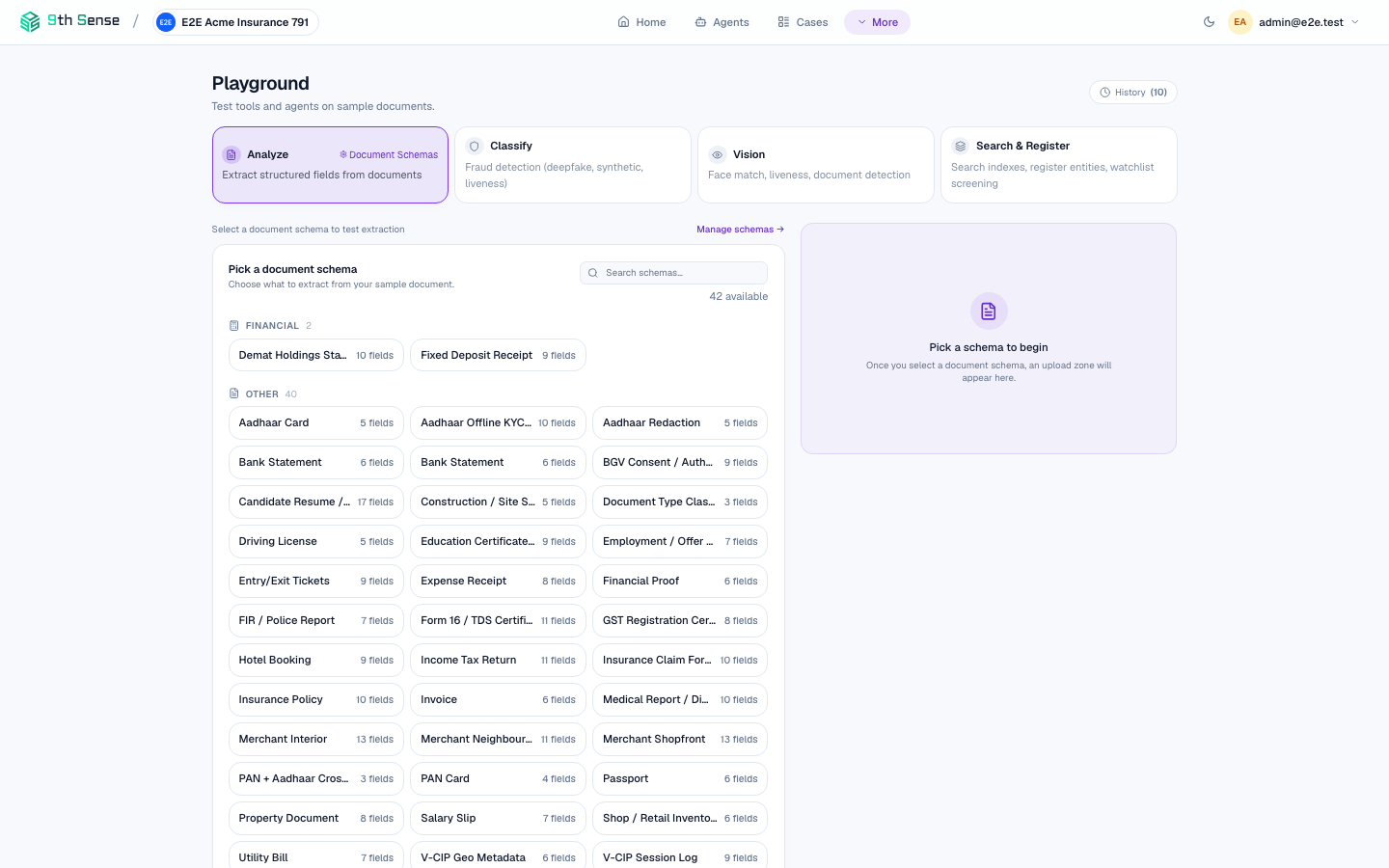 Playground interface showing Analyze tab selected, document schema picker with 42 available schemas organised by category, and an upload zone on the right
Open the Playground
Click Playground in the sidebar.
Upload a file
Drag a file into the upload zone, or click Upload. Supported formats: PDF, JPEG, PNG, TIFF, WEBP, BMP. Max 50 MB.
The file is shown in the preview panel on the left.
Select an action and document type
In the right panel, choose an Action from the dropdown — Extract, Validate, Fraud Check, Risk Assessment. For actions that require a Document Type (like Extract), a second dropdown appears — select the context_id from your library.
Run
Click Run. The action executes and the result appears in the Results panel below within a few seconds.
The result shows:
- Extracted fields or check verdict — the structured JSON output
- Latency — how long the run took in milliseconds
- Tokens — prompt and completion token counts for AI-backed runs
- Raw output — the unprocessed model response (useful for debugging)
Chaining steps
You can run multiple steps in sequence on the same file without leaving the Playground:
- After a successful run, click Add Step below the result.
- Select the next action (e.g. run Validate after Extract, or a fraud check before extraction).
- Click Run Step. The second step uses the output of the first as its input automatically.
The Results panel shows each step's output as a collapsible section, so you can trace the full run.
Switching files
Click Replace File at the top of the upload zone to swap the file without losing your selected steps. Useful for testing the same Document Type against multiple documents.
Copying as code
Click Copy as cURL or Copy as Python next to any result to get a ready-to-run snippet that reproduces the exact call — including the base64-encoded file and parameters.
# Example generated snippet
curl -X POST https://api.9thsense.ai/v1/verify \
  -H "X-Api-Key: zk_live_..." \
  -H "Content-Type: application/json" \
  -d '{
    "context_id": "kyc_pan_card",
    "data": "<base64>",
    "mime_type": "image/jpeg"
  }'
Recent runs
The Recent Runs panel on the right side of the Playground shows your last 20 runs (this browser session). Click any row to reload that run's file, selected steps, and result for comparison.
Limits
Playground runs are logged to your account and count against your usage quota at the same rate as API calls. There is no separate "free" playground tier — each run uses one invocation credit.
For high-volume exploratory testing, use the Python SDK's LocalSimulator instead. It mocks all API calls locally with no credit consumption.
Common use cases
Exploring a new document type
Choose Classify, upload an unknown document, and see which of the 40+ pre-built document types it matches. Then switch to Extract with that type to see the extracted fields.
Trying the fraud checks
Upload a selfie or ID image and run a Fraud Check — deepfake detection, liveness, or synthetic document detection — to see the verdict, confidence, and flags exactly as an agent's Goal Rules would receive them.
Debugging extraction failures
Run Extract on the problem document. Check the Raw output tab — the unprocessed response often reveals why a field came back null (e.g. the document was blurry, the field was cropped out, or a different field name was used).
Verifying a custom document type
After creating a new Document Type in the library, immediately test it here by running Extract with your new context_id against a real sample.