A map of the 9thSense dashboard — what each section does and where to find it
Dashboard Overview
The 9thSense dashboard is the control plane for your document intelligence workflows. Every API call, agent run, and document ingestion has a corresponding record you can inspect, replay, or audit here.
The six main areas
Cases
Each verification run for one subject. A case tracks the full lifecycle — document collection, agent processing, human review — with a permanent audit log.
Agents
The logic that processes a case. Build extraction pipelines or multi-turn conversational flows here, then deploy with a single toggle.
Playground
Run any tool or document type against a real file without writing code. Use it to explore the API before building, or to debug live extractions.
Document Types
The extraction configs that define what fields to pull from a document. Browse 40+ pre-built types or create custom ones for your forms.
Analytics
Usage metrics across tools, agents, and document types. Filter by date range to track throughput and spot anomalies.
Admin
API keys, user accounts, RBAC roles, audit logs, and organization settings live here.
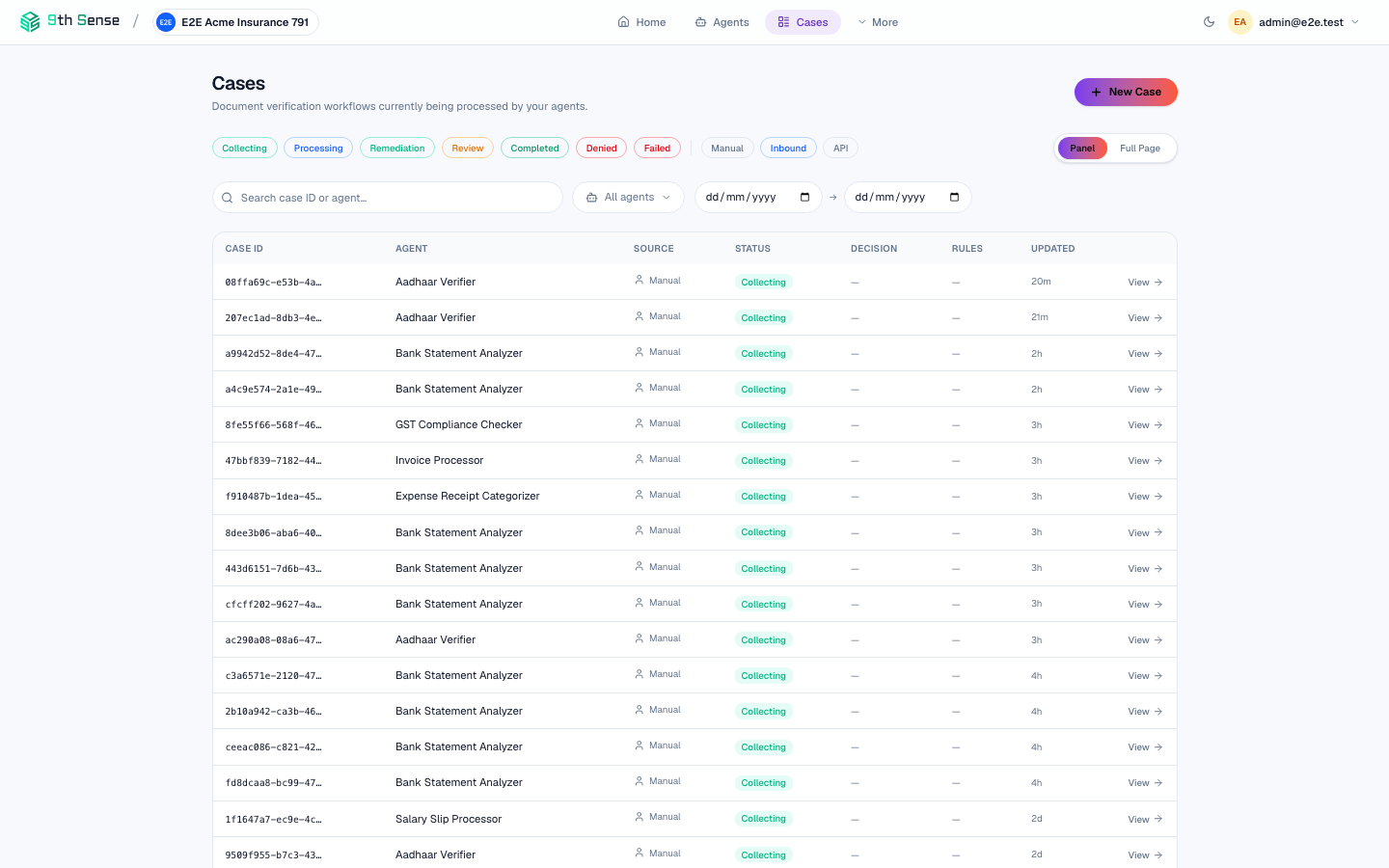 The 9thSense dashboard Cases list view showing the top navigation bar, sidebar with Home / Agents / Cases / More items, and the cases table with status filter chips
Navigation
The sidebar on the left gives you instant access to every section. On mobile, tap the menu icon at the top.
The breadcrumb at the top of each page shows your current location and provides one-click navigation to parent pages.
Roles & permissions
What you can see and do depends on your role:
| Role | Cases | Agents | Playground | Admin |
|---|---|---|---|---|
| Viewer | Read-only | Read-only | — | — |
| Operator | Create & review | — | Run tools | — |
| Builder | Full access | Build & test | Full access | — |
| Admin | Full access | Full access | Full access | Full access |
An Admin can change your role from Admin → Users.
Quick orientation
Create an API key
Go to Admin → API Keys and click New Key. Choose the write scope for running agents from your backend. Copy the key — it is shown only once.
Try the playground
Go to Playground, upload a PAN card or Aadhaar, and select the matching document type. The extraction result appears in under 3 seconds.
Open a case
Go to Cases → New Case, select an agent, and provide the subject's details. The agent processes any documents you upload against it.
Further reading
- Cases — full case lifecycle and review workflow
- Agents — build and deploy agents
- Playground — test tools interactively
- Admin & Settings — manage API keys and users