Browse the pre-built library and create custom document types for your forms
Document Types
A Document Type is an extraction configuration — it defines which fields to pull from a document, what type each field should be, and which fields to flag if they're missing or malformed. Agents use the Document Type's context_id to route each uploaded file to the right config.
9thSense ships with 40+ pre-built Document Types covering identity, financial, business, travel, and scene categories. You can also create custom types for your own forms, contracts, or internal documents.
Browsing the library
Go to Document Types in the sidebar. The list shows all types available to your tenant — pre-built types are marked with a lock icon (read-only), custom types show an edit icon.
Use the Category filter to narrow the list:
| Category | Examples |
|---|---|
| Identity | PAN card, Aadhaar, passport, driving licence, voter ID |
| Financial | Bank statement, ITR, salary slip, Form 16 |
| Business | GST certificate, MSME certificate, MoA, COI |
| Travel | Passport, visa, boarding pass |
| Scene | Premises photo, vehicle inspection, inventory count |
| Classification | Generic classifier (no schema — returns the matched type) |
Click any type to open its detail page showing the full output schema, validation rules, and sample output.
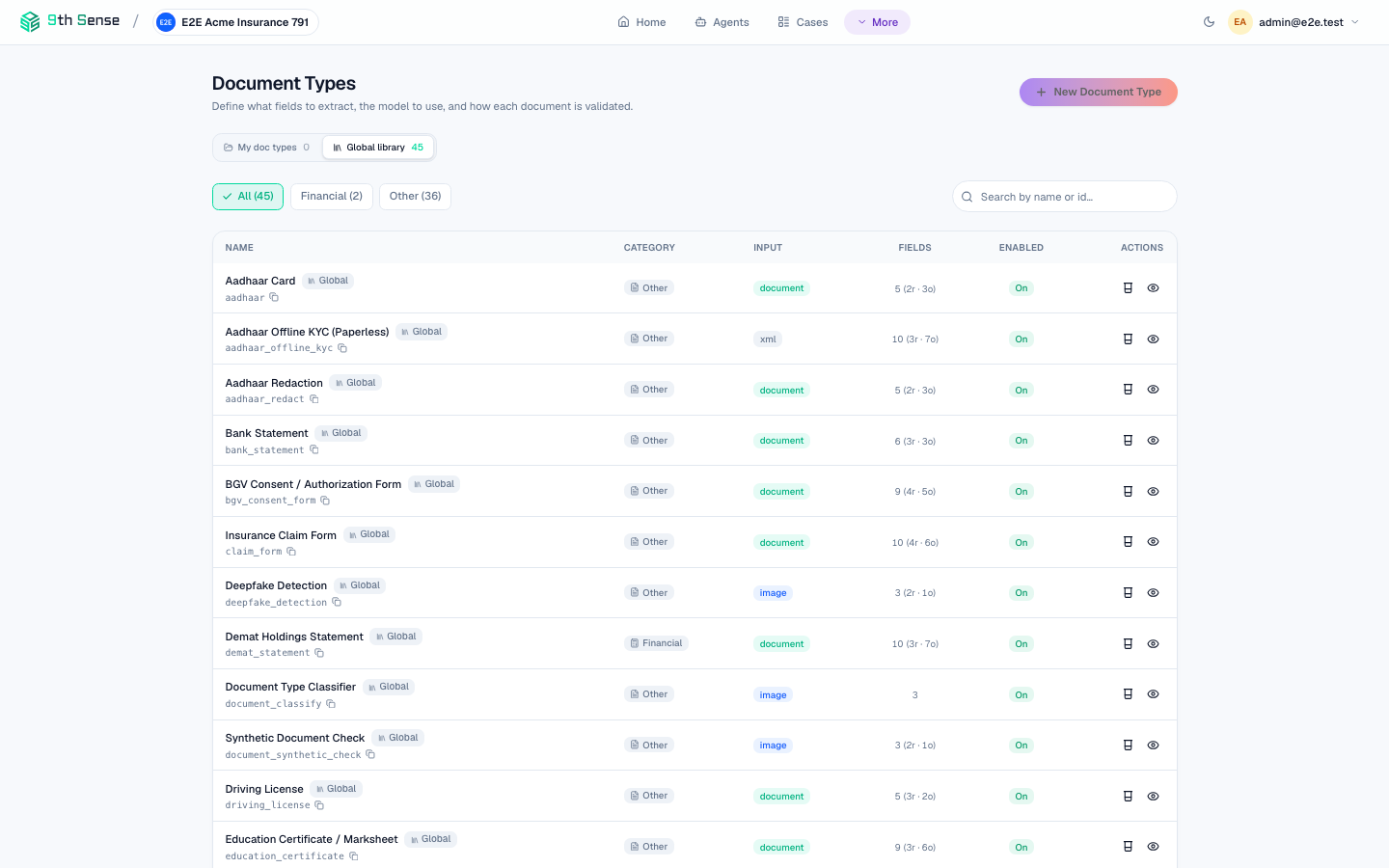 Document Types library showing pre-built types organised by category with field counts, and a search bar at the top
Creating a custom Document Type
Click New Document Type
Go to Document Types → New.
Name and categorise
Set a human-readable Display Name (e.g. "Employment Agreement") and choose a Category. The system auto-generates a context_id slug (e.g. custom_employment_agreement). Note this — you'll use it in API calls.
Define the output schema
Add fields one by one. For each field:
| Setting | Description |
|---|---|
| Field name | Snake_case identifier returned in the API response (e.g. employee_name) |
| Type | string, number, boolean, date (returns ISO-8601), or array |
| Required | Whether the extraction fails if this field is missing |
| Mask | If checked, the field's bounding box coordinates are returned so it can be redacted |
| Description | Hint for the model — describe what the field looks like or where it appears |
Add validation rules (optional)
Under Validation, add deterministic rules — the same family used by Goal Rules:
- Regex — the field value must match a pattern (e.g.
^[A-Z]{5}[0-9]{4}[A-Z]$for PAN) - Range — for numbers or dates, set min/max bounds
- Enum — the value must be one of a fixed list (e.g.
["P", "C", "H"]for PAN type) - Cross-field — a field must equal another field on the same document (e.g. account number matches on front and back)
Validation failures don't discard the extraction — they're reported in the execution result and can block completion or trigger review via the agent's goal rules.
Add classify hints (optional)
Under Classification, add text snippets that uniquely identify this document type (e.g. "Employment Agreement", "Permanent Account Number"). These help auto-classification route unknown uploads to this type.
Save
Click Save. The type is immediately available in the Playground and any agent pipeline.
Editing a Document Type
Click Edit on any custom type. Changes take effect immediately for new extractions — in-flight cases are not affected.
Renaming or removing a field from the output schema is a breaking change for any downstream code that reads those fields. Add fields freely; remove with caution.
Every saved version is retained. Click History to see previous versions and what changed between them.
Using a Document Type in an agent
Reference the type by its context_id when requesting extraction:
result = client.verify.document(
    doc_type="custom_employment_agreement",
    data=base64_encoded_pdf,
    mime_type="application/pdf",
)
In the Agent Builder, select the context_id from the dropdown when configuring an extraction step.
Schema-less mode
If you run extraction against a Document Type whose output schema has no fields defined, it switches to schema-less mode: the model discovers and returns whatever fields it finds in the document as a flat JSON object. Use this to explore a new document before locking in a schema.
Deleting a custom Document Type
A Document Type can only be deleted if no agents reference it. Remove it from all agent pipelines first, then delete it from the Document Types list.